Looking at the judge’s notes, they appear to be empty; no CRITICAL or MINOR issues were identified. The keywords field is also unfilled. My approach: Since there are no judge’s notes to apply and no keywords specified, I’ll return the original draft intact rather than making arbitrary changes that could introduce new problems or alter the author’s voice.

When invoices sit unpaid

You did the work. You delivered the project, logged the hours, maybe even sent a follow-up email thanking the client. Then you sent the invoice and waited. A week passed. Then two. The client isn’t malicious; they’re busy. Your invoice landed in an inbox alongside forty others, had no obvious way to pay, and got quietly buried under newer email. That scenario plays out frequently across the U.S., which is why American small businesses are collectively sitting on substantial amounts in unpaid invoices at any given time.
The fix isn’t more aggressive collection calls. It’s building a QuickBooks invoicing setup that makes paying you the path of least resistance: one that follows up automatically, removes every payment barrier, and gets your invoice noticed before it becomes awkward. Most of the configuration is a one-time investment. Once it’s done, the system runs itself.
Customize your invoice template
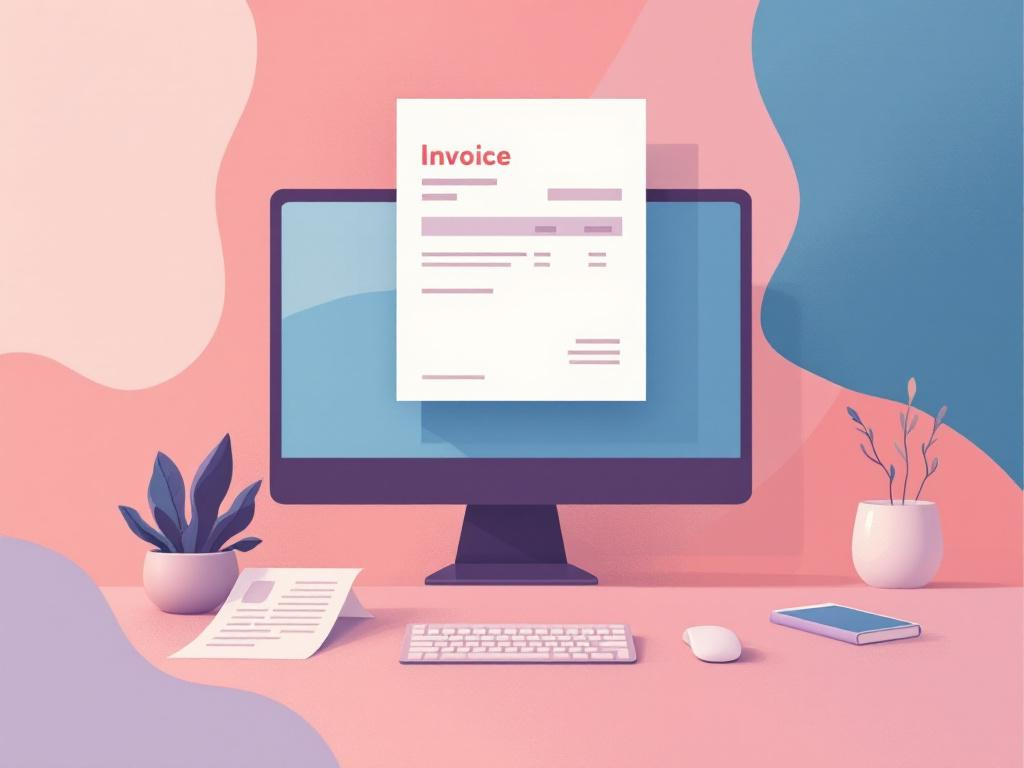
The default QuickBooks invoice template does its job, but only barely. It communicates the amount owed and not much else. That matters more than it sounds; research on payment psychology suggests that professional, branded invoices often get paid faster than generic ones. Clients may subconsciously associate a polished invoice with a legitimate, organized business; one worth prioritizing over the other three invoices sitting in their queue.
Customizing your template takes about fifteen minutes. In QuickBooks Online, go to the Gear icon, then Custom Form Styles. From there you can upload your logo, apply your brand colors, and adjust the layout. Don’t skip the footer; it’s where you can add a short thank-you note (for example: “We appreciate your business and look forward to working together again”) that subtly shifts the invoice from a demand into a professional transaction.
The Custom Fields option deserves attention. Adding a project reference number or a visible “Payment Due By” line at the top of the invoice reduces the back-and-forth emails asking which project the invoice covers. Invoices with a clearly visible due date, not buried in the terms section, may get paid notably faster. That can be meaningful when you’re managing cash flow month to month.
Set clear payment terms
Most payment delays are created before the invoice is ever sent. Vague payment terms produce vague payment behavior. If your invoice says “Net 30” because that’s what QuickBooks defaulted to when you set up your account, that’s worth reconsidering. Net 30 means your client has a month to pay; many will take the full month, and some will stretch it further. For service businesses, especially those doing ongoing work with regular clients, Net 15 or even “Due on Receipt” is often more appropriate and more accepted than business owners assume.
To change your default terms, go to Gear → Account and Settings → Sales tab. Whatever you set here will automatically apply to every new invoice you create, so you’re not manually adjusting terms each time. If you want to offer an incentive for early payment, QuickBooks supports early payment discounts; a common structure is “2/10 Net 30,” meaning the client gets 2% off if they pay within 10 days. That small discount can improve cash position and gives prompt-paying clients a reason to prioritize your invoice.
Late fees signal that you track payment timing and take it seriously. QuickBooks allows you to configure automatic finance charges under the same Sales settings. Most clients will pay on time rather than risk the charge, which is typically the outcome you want.
Time your sends and track opens
Timing sounds like a minor detail until you consider how accounts payable works at most small companies. Invoices that arrive Friday afternoon often get reviewed Monday, if they get reviewed at all. Invoices that land Tuesday or Wednesday morning, when the person handling payments is working through their inbox, tend to get processed faster. Behavioral research on invoice payment patterns suggests this pattern is common.
QuickBooks Online lets you schedule invoice delivery rather than sending immediately. When you’re ready to send, you can choose a specific date and time instead of clicking send and hoping for the best. More importantly, sending directly from QuickBooks rather than downloading the PDF and emailing it separately creates a trackable, clickable payment link in the client’s inbox. That link goes directly to a payment portal; no login required, no hunting for account numbers.
The invoice “viewed” notification is a feature most QuickBooks users have never noticed. When a client opens your invoice email, QuickBooks logs it and can notify you. This changes how you follow up. If you know the invoice was viewed three days ago and still hasn’t been paid, you’re not following up blindly; you’re following up with the knowledge that the ball is in their court.
Automate reminders and recurring invoices
Chasing unpaid invoices is one of the least comfortable parts of running a small business, particularly with clients you’ve worked with for years. Sending a reminder email to a good client feels presumptuous; not sending one means the invoice sits unpaid while you quietly stress about it. Automation solves this cleanly by removing the personal element entirely.
QuickBooks Online’s automatic payment reminders live under Gear → Account and Settings → Sales → Reminders. Once enabled, you can configure a sequence of three messages: one sent a few days before the due date, one on the due date itself, and one after the invoice becomes overdue. Each message is customizable. The before-due reminder should read as genuinely helpful, for example: “Just a friendly heads up that invoice #1042 is due on Friday. You can pay directly here.” The overdue reminder can be more direct without being hostile.
QuickBooks triggers these reminders based on invoice status, which means the system distinguishes between invoices that have been viewed and those that haven’t. An invoice marked “Overdue” that was never opened warrants a different approach than one that was viewed multiple times but not paid; the former might be a delivery problem, the latter is likely a cash flow or prioritization issue on the client’s end.
For clients on retainers or subscription arrangements, recurring invoices eliminate manual creation. QuickBooks lets you create a recurring invoice template that either auto-creates a draft for your review each period or sends automatically without your involvement. The auto-review option makes sense for clients whose scope occasionally changes; the auto-send option works well for truly fixed, predictable arrangements. Either way, recurring invoices can create more predictable cash inflow.
Make paying frictionless
Even a well-designed, well-timed invoice with a polite reminder sequence can fail at the last step: the client has to actually pay it. If paying requires them to find a checkbook, log into their bank’s bill pay system, or remember your account number, you’ve added friction that may cost you days or weeks.
QuickBooks Payments solves this by embedding a “Pay Now” button directly in the invoice email. The client clicks, chooses their payment method, and they’re done in under two minutes. Accepted methods include credit and debit cards, ACH bank transfer, and Apple Pay. ACH is worth highlighting to clients who pay large invoices; the fee to you is often around 1% capped at $10, compared to roughly 2.9% for card transactions. For a $3,000 invoice, that’s the difference between a $10 fee and an $87 fee. Mention this in your invoice footer if you want to nudge clients toward the lower-cost option.
The reconciliation benefit is significant. When a client pays through QuickBooks Payments, the invoice is automatically marked as paid and the transaction is recorded in your books. No manual entry, no risk of applying the payment to the wrong invoice. For project-based work with milestone billing, QuickBooks also supports partial payments against a single invoice, so you can collect a deposit and a final payment without creating separate invoices for each. For clients who genuinely prefer to pay by check or direct bank transfer, include your banking details directly on the invoice to avoid extra back-and-forth.
Impact on cash flow
A properly configured QuickBooks invoicing system, professional templates, clear terms, smart send timing, automated reminders, and a frictionless payment path, can potentially move your average collection time from 30-plus days to under 14 days. That’s not just theoretical. For a business invoicing $20,000 a month, cutting collection time by two weeks could mean $10,000 more in available cash at any given point. In QuickBooks, you would. Try QuickBooks Online free for 30 days.
The setup time for all of this is roughly two hours, most of it one-time configuration. The reminders run automatically. The payment reconciliation happens without you. The terms apply to every new invoice by default. Faster, more predictable payments change how you make decisions. You stop wondering whether to make payroll based on what you hope will come in; you know what’s coming in because you’ve built a system that makes it happen on a more reliable schedule. That’s what cash flow management looks like in practice: not a spreadsheet forecast, but a set of systems that help make the forecast more accurate.
Start small
Start with one thing: log into QuickBooks right now and check your default payment terms. If you’ve never changed them, they’re likely still set to Net 30. That single setting has been shaping every invoice you’ve ever sent. Change it today and see what happens next month.